Simplify the process of producing visually rich mail merges using Gmail and combining it with data from Google Sheets. With this solution you can automatically populate an email template created as a Gmail draft with data from Google Sheets. Merged emails are sent from your Gmail account allowing you to respond to recipient replies.
Technology highlights
- Uses the Gmail Service to read drafts and to send emails.
- Uses SpreadsheetApp service to read and write data.
Try it
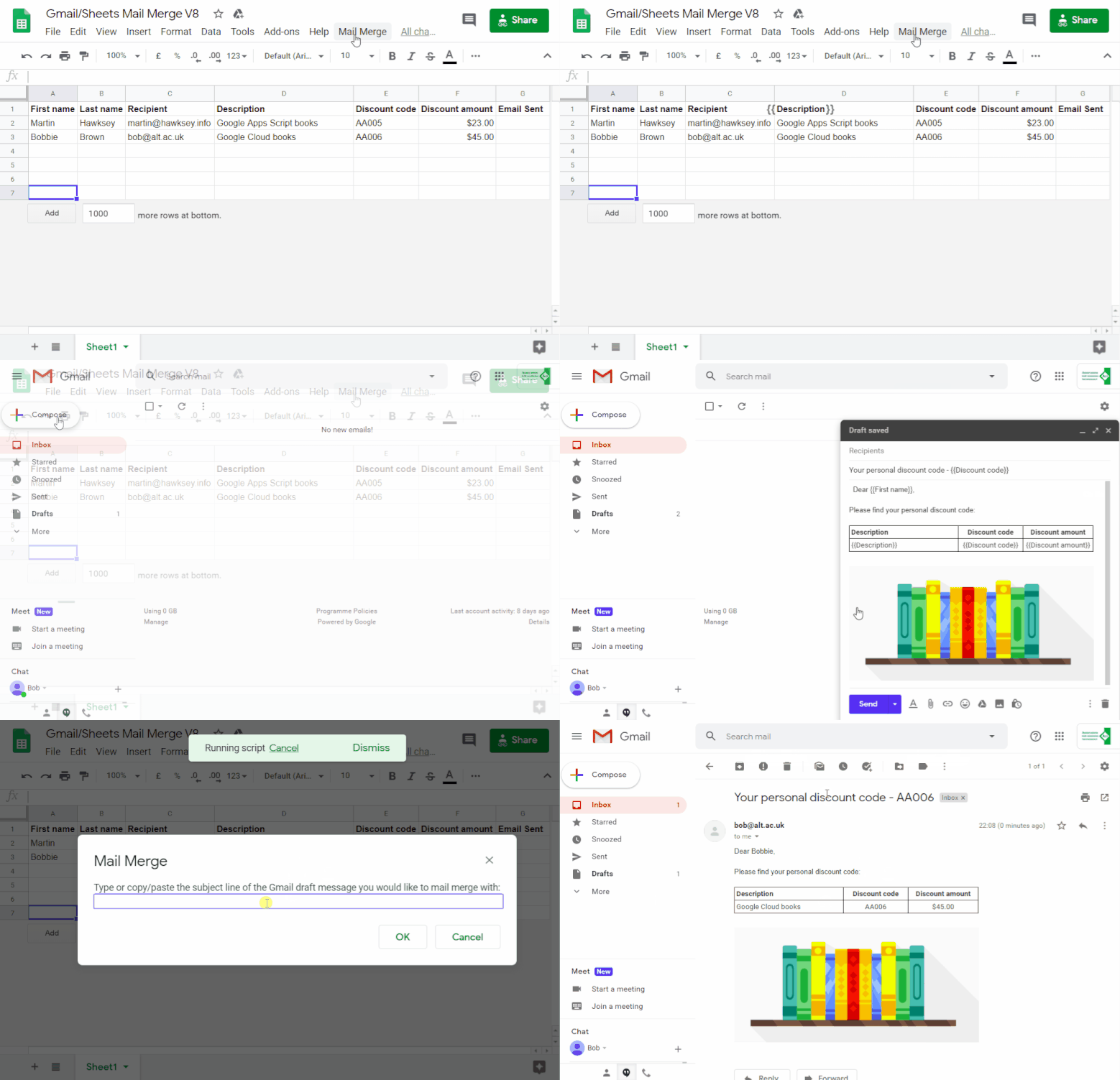
- Create a copy of the sample Gmail/Sheets Mail Merge spreadsheet.
- Update the Recipients column with email addresses you would like to use in the mail merge
- Create a draft message in your Gmail account using markers like
{{First name}}, which correspond to column names, to indicate text you’d like to be replaced with data from the copied spreadsheet. - In the copied spreadsheet, click on custom menu item Mail Merge > Send Emails.
- A dialog box will appear and tell you that the script requires authorization. Read the authorization notice and continue.
- When prompted enter or copy/paste the subject line used in your draft Gmail message and click OK
- The Email Sent column will update with the message status.
Next steps
Additional columns can be added to the spreadsheet with other data you would like to use. Using the {{}} annotation and including your column name as part of your Gmail draft will allow you to include other data from your spreadsheet. If you change the name of the Recipient or Email Sent columns this will need to be updated by opening Tools > Script Editor.